A little closer.
One conversation away.
Live, one-to-one voice on Apple Watch. Pair with a friend, open Talkie and take turns talking.
Early beta · Invite-only for now
Want to try it with a friend? Ask for a beta invite. External invites will be sent once Apple approves the beta. Expect some rough edges.
Your first conversation
Two Apple Watches. An internet connection. A friend.
Once you receive your TestFlight invitation, install Talkie on both watches, open the app and choose a display name. Allow microphone access. Allow notifications if you want friends to ask you to open Talkie. Both watches need internet access, but not the same Wi-Fi. No Talkie sign-in or Contacts access is needed; there is no iPhone talking app.
Pair your watches
On Home, tap + or Add a friend. One person chooses Create; the other chooses Join. Share the six-digit code privately, enter it on the other watch and tap Connect.
Each code lasts 30 seconds. If it changes before you join, use the new code. Wait until the friend appears on both watches.
Choose a friend
Tap your friend to open a conversation. Opening the screen makes you available to that friend. It does not send audio.
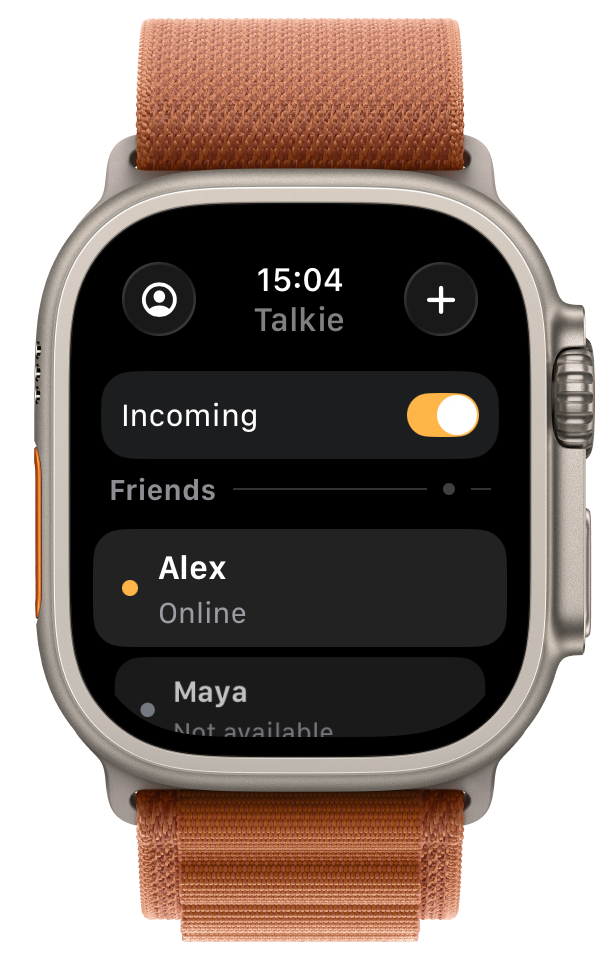
Your friend can open your conversation too, or leave Incoming on while on Home.
Take turns talking
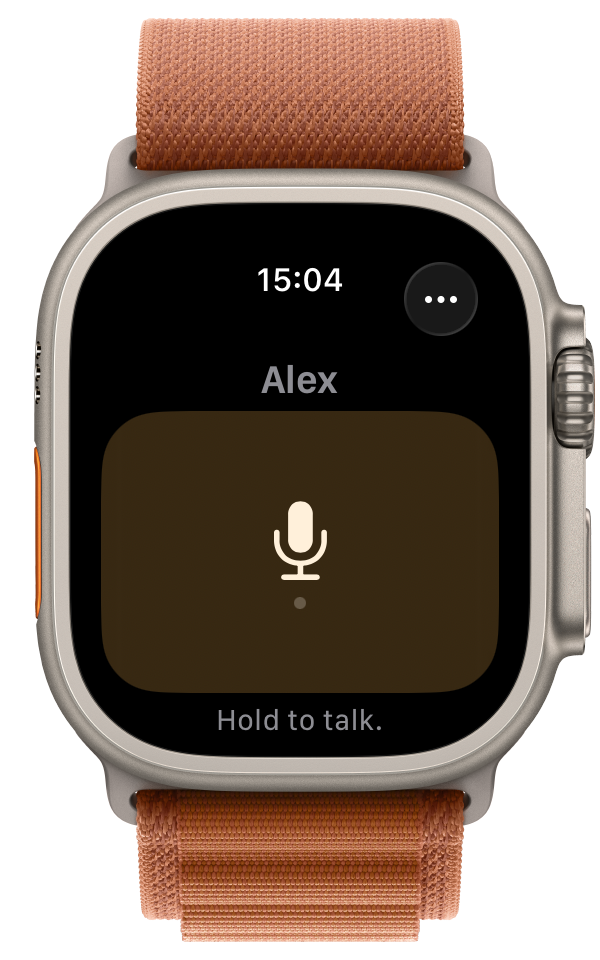
Wait until your friend is ready, then hold the microphone button. Start speaking when you feel the ready tap. Release to stop, and let your friend reply. The screen changes as you talk or listen.
One person speaks at a time. A turn ends after at most 60 seconds; start a fresh turn if you have more to say.
Prefer a tap? Open the conversation’s ••• menu and turn on Tap to talk. Tap once to start, and again to stop. The button’s hint tells you which mode is active.
Be available.
On your terms.
Incoming is your invitation to paired friends—not an indication that you are transmitting.
Check your Incoming setting when you first open Talkie. Leave it off when you do not want friends to start a conversation automatically.
| Where you are | Incoming | Who can reach you |
|---|---|---|
| Home | On | Any paired friend. Their incoming speech opens the conversation automatically. |
| Home | Off | No live incoming audio. You appear offline to friends. |
| In a conversation | On | Only that friend. You appear Busy to everyone else. |
| In a conversation | Off | Only that friend. You appear Offline to everyone else. |
Change Incoming on Home. When you leave a conversation, your saved Incoming choice applies again. Opening a friend’s conversation permits them even when Incoming is off.
You cannot go back during incoming speech. Wait for the turn to finish, return Home and turn Incoming off if you do not want another conversation to start. Audio already received may finish playing when you leave or switch conversations.
The everyday details
- Raise your wrist to speak
- In the conversation’s ••• menu, turn on Raise to speak and read the short explanation. Lower your wrist first, then raise it upright towards your mouth to talk. Lower or straighten it to stop. This works while a conversation is open; you can still use Hold or Tap to talk. Try the movement before relying on it, and turn it off if it starts when you do not intend to speak.
- Turn the Crown for volume
- In a conversation, rotate the Digital Crown to adjust volume. The speaker indicator appears as it changes, then hides. At zero, incoming speech is silent and the indicator flashes red. Turn the Crown up to hear again. If you use headphones, check where the audio is playing.
- Give an offline friend a nudge
- If Notify friend appears, tap it to ask them to open Talkie. It is separate from Talk and sends no speech. Busy friends cannot be notified. Notifications need permission and may be delayed; repeated requests may be limited.
- Open a notification to switch
- Tapping a Talkie notification opens that friend’s conversation, including when the app was closed. It does not start your microphone transmission. Dismiss it to stay in your current conversation.
- Keep Talkie open
- Both watches need Talkie open for live speech. A dimmed display is not the same as leaving the app; please report interruptions when it dims. Switching away or returning to the watch face stops live communication. A notification asks you to reopen Talkie—it does not play speech over the watch face. Keeping Talkie open may use more battery. This is not an off-grid radio or an emergency service.
- Manage your friends
- On Home, swipe a friend to Rename or Remove. Renaming changes the label on your watch. Removal asks for confirmation. Pair again if you want to reconnect later.
- Your name and local data
- Open My profile from Home to change your name. Existing friends keep the name they saved. Delete all Talkie data removes your local identity and friendships after confirmation; you will need to pair again.
A little help
when you need it.
Start with the status on each watch. Being connected to the service does not always mean your friend is ready.
Contact Lumen IOWhat do Ready, Busy and Offline mean?
Ready: you can start talking. Busy: your friend has another conversation open, even if nobody is speaking. Offline: they are not currently available to you; their watch may still be on.
Ask them to open Talkie and either enter your conversation or turn Incoming on at Home. Use Notify friend if the button is offered; holding Talk does not send a notification.
The connection dropped while I was talking
Talkie attempts to recover connection interruptions automatically while open. Old speech is not replayed, and an old hold does not resume. Wait for readiness and start a fresh turn. If Try again appears, use it; on Home, tap an error line for details.
Weak networks can interrupt a turn. Move to a stronger connection and try a short sentence. This beta is still being tested under adverse network conditions.
Why is the microphone indicator on when I am not talking?
Talkie keeps microphone sampling active while the app is open to prepare the live audio connection. Unsent samples are discarded. Speech is transmitted only during an authorized speaking turn. Incoming controls who can reach you; it is not a microphone-off switch.
Talkie does not save recordings, transcripts or voice-message history. Leave the app to stop its foreground audio session.
I cannot hear my friend
Check the watch’s system volume with the Crown in the conversation, and check where audio is being played if you use headphones. Make sure the other person waits for their turn before speaking. If an audio error appears, follow its recovery action and check microphone permission in the watch’s settings.
Talkie says it couldn’t configure audio
We are investigating an audio setup failure reported in this beta. The suggestion to close other audio apps is generic—it does not establish that another app is using audio. “Incoming audio starting…” may also remain visible after this failure.
Tap the error line, try the offered retry action, and send us a photo of the full message if it persists. Include your watch model, watchOS version and Talkie build number. Please do not reset or unpair your watch to troubleshoot this.
The pairing code expired
Keep Create open on one watch and read its current code. On the other watch, choose Join and enter that code within 30 seconds. Share it only with the person you intend to pair with. If either watch reports an incomplete pairing, remove that incomplete friend and try again.
What should we try in the beta?
Try short and longer messages in both directions, Hold, Tap and Raise to speak, Incoming on and off, Crown volume down to mute, notifications, and leaving then reopening Talkie.
Tell us about missing words, long delays, incorrect friend status, unexpected Raise to speak starts, quiet audio or battery drain. Groups, scheduled availability and saved voice messages are not part of this beta.
What should I include in beta feedback?
Use TestFlight feedback or email us. Say what you expected, what happened, and what you did just before it. A photo of the full error helps.
For problems, include both watch models and watchOS versions where possible, the Talkie build number, approximate time, and whether you were using Wi-Fi or mobile data. TestFlight shares crash reports, but ordinary audio errors do not automatically send us detailed app logs. Do not include private conversations, pairing codes or someone else’s personal information.